



[quote author=e9999 link=board=2;threadid=14175;start=msg134036#msg134036 date=1081302205]
RT, could you tell us a bit more about how much time this all took and how you did it?
Did you have to find each file separately somehow or was there a way to figure out the directory structure and all file names?
No wildcard download eh?
thanks
Eric
[/quote]
it took me about 12 hours but I had to download the first 1/3 of the FSM twice as I figured it out about that far in how to do it right, also stopped for many breaks and 2 meals, it could probably be done in 4 or 5 hours, less if you did not make a folder structure along the way but that would result in useless mass of crap, if you are on Dial-up forget it
with the exception of the training manual the files download faster than you can click on them (average about 100KB only a few pages each) so it is not something you can walk away from wile it downloads, unless somebody knows how to write a script all 1,260 files have to be individually selected and downloaded
if someone can figure out how to automate this that would be wonderful! if not this is how I did it:
first uninstall Adobe acrobat reader, with it installed it tries to just open the file without saving it, makes it much slower or if you are like me and have AE 6.0 it just sits there and does nothing, The Tis site says you need to update AE to 6.01 or something to work with that site I just uninstalled it and every click brings up the Download dialog box
after you log on in the left upper pane select the vehicle, in the lower left pane select the manual and hit the “search” button
I used 2 different approaches, one for the FSM and one for the rest of the manuals/data (10 “manuals” in all plus some other odds and ends) create a folder for ecah manual
For the non FSM: in the right pane select all sections and click the “find” button this will bring up all the files in that manual, for all except for the FSM (repair Manual) this is fine, the list gives the title of the document not the file name, the actual file name is a contraction of the document tile, most are indecipherable for instance in the transmission overhaul manual OVERDRIVE DIRECT CLUTCH –“ is named “no006ove.pdf”
, you could rename the file to the document name as you download this would slow you down considerably but you would have a usable manual when you are done, I did not I will have to go back through and rename the files as I read them but there are only 404 non FSM files, and many I will never use, all manuals except for the FSM can be just dumped in a folder (one folder for each manual) the Non FSM manuals have fairly diverse file names with a fer repeats, for instance in the body manual there are 2 “Handling.pdf” when windows complains rename the second “handling2.pdf”, when done downloading find the properties of that folder and get a file count, this # should match the # of results for your “find” listed above the results, some of the “finds” return over 100 results finding the missing one is hard so be careful downloading ( I only had search for the missing file once)
the FSM is another mater, and required a different approach it has 856 files mostly using the same 20 or so file names, it is divided into 23 sections and the sections are divided into about 280 subsections, almost always none of the files in a single subsection have the same name so most of the time all the files in a subsection can be downloaded to the same folder without renaming
so on your computer make a folder for the FSM (Repair Manual) then inside a folder for the first section (introduction) on the Tis website select introduction in the section box in the right pane and click find, then in the introduction folder on your computer create the first subsection folder “how to use this manual” and download the 1 file Titled “General Information” but file named geninf.pdf to that folder, then create the second subsection folder “identification Information” and download its file, then create the third subsection folder Repair instructions witch has 2 files one is also titled “general Information” geninf.pdf this is why you must have separate folders for each subsection because so that “how to use this manual” geninf.pdf and repair instructions geninf.pdf can have separate homes, when finished with all the subsections find the properties of the section folder and make sure the file count matches your “find” result count then move on to the next section and repeat,
for those that do not know you can create and name and navigate folders right there in the download dialog box
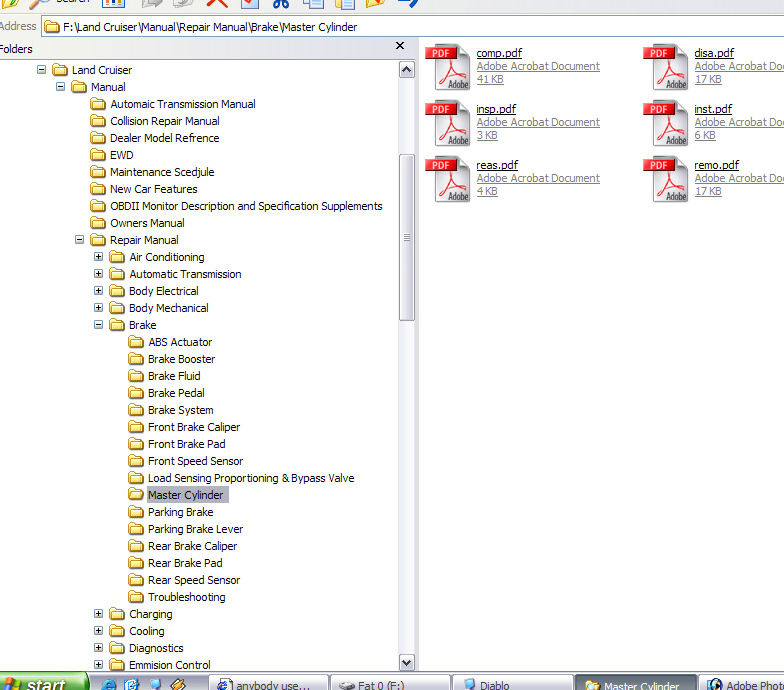
when you are done downloading reinstall acrobat reader and you will have a very usable manual by just brousing through the folders when you get to the folder then names are usable remo.pdf is removal of whatever subsection we are talking about insp.pdf is inspection of that part ect. No later renaming of 800+ files is required for the FSM as long as you make the 300 or so folders
dam that was a long post
RT, could you tell us a bit more about how much time this all took and how you did it?
Did you have to find each file separately somehow or was there a way to figure out the directory structure and all file names?
No wildcard download eh?
thanks
Eric
[/quote]
it took me about 12 hours but I had to download the first 1/3 of the FSM twice as I figured it out about that far in how to do it right, also stopped for many breaks and 2 meals, it could probably be done in 4 or 5 hours, less if you did not make a folder structure along the way but that would result in useless mass of crap, if you are on Dial-up forget it
with the exception of the training manual the files download faster than you can click on them (average about 100KB only a few pages each) so it is not something you can walk away from wile it downloads, unless somebody knows how to write a script all 1,260 files have to be individually selected and downloaded
if someone can figure out how to automate this that would be wonderful! if not this is how I did it:
first uninstall Adobe acrobat reader, with it installed it tries to just open the file without saving it, makes it much slower or if you are like me and have AE 6.0 it just sits there and does nothing, The Tis site says you need to update AE to 6.01 or something to work with that site I just uninstalled it and every click brings up the Download dialog box
after you log on in the left upper pane select the vehicle, in the lower left pane select the manual and hit the “search” button
I used 2 different approaches, one for the FSM and one for the rest of the manuals/data (10 “manuals” in all plus some other odds and ends) create a folder for ecah manual
For the non FSM: in the right pane select all sections and click the “find” button this will bring up all the files in that manual, for all except for the FSM (repair Manual) this is fine, the list gives the title of the document not the file name, the actual file name is a contraction of the document tile, most are indecipherable for instance in the transmission overhaul manual OVERDRIVE DIRECT CLUTCH –“ is named “no006ove.pdf”
, you could rename the file to the document name as you download this would slow you down considerably but you would have a usable manual when you are done, I did not I will have to go back through and rename the files as I read them but there are only 404 non FSM files, and many I will never use, all manuals except for the FSM can be just dumped in a folder (one folder for each manual) the Non FSM manuals have fairly diverse file names with a fer repeats, for instance in the body manual there are 2 “Handling.pdf” when windows complains rename the second “handling2.pdf”, when done downloading find the properties of that folder and get a file count, this # should match the # of results for your “find” listed above the results, some of the “finds” return over 100 results finding the missing one is hard so be careful downloading ( I only had search for the missing file once)
the FSM is another mater, and required a different approach it has 856 files mostly using the same 20 or so file names, it is divided into 23 sections and the sections are divided into about 280 subsections, almost always none of the files in a single subsection have the same name so most of the time all the files in a subsection can be downloaded to the same folder without renaming
so on your computer make a folder for the FSM (Repair Manual) then inside a folder for the first section (introduction) on the Tis website select introduction in the section box in the right pane and click find, then in the introduction folder on your computer create the first subsection folder “how to use this manual” and download the 1 file Titled “General Information” but file named geninf.pdf to that folder, then create the second subsection folder “identification Information” and download its file, then create the third subsection folder Repair instructions witch has 2 files one is also titled “general Information” geninf.pdf this is why you must have separate folders for each subsection because so that “how to use this manual” geninf.pdf and repair instructions geninf.pdf can have separate homes, when finished with all the subsections find the properties of the section folder and make sure the file count matches your “find” result count then move on to the next section and repeat,
for those that do not know you can create and name and navigate folders right there in the download dialog box
when you are done downloading reinstall acrobat reader and you will have a very usable manual by just brousing through the folders when you get to the folder then names are usable remo.pdf is removal of whatever subsection we are talking about insp.pdf is inspection of that part ect. No later renaming of 800+ files is required for the FSM as long as you make the 300 or so folders
dam that was a long post


