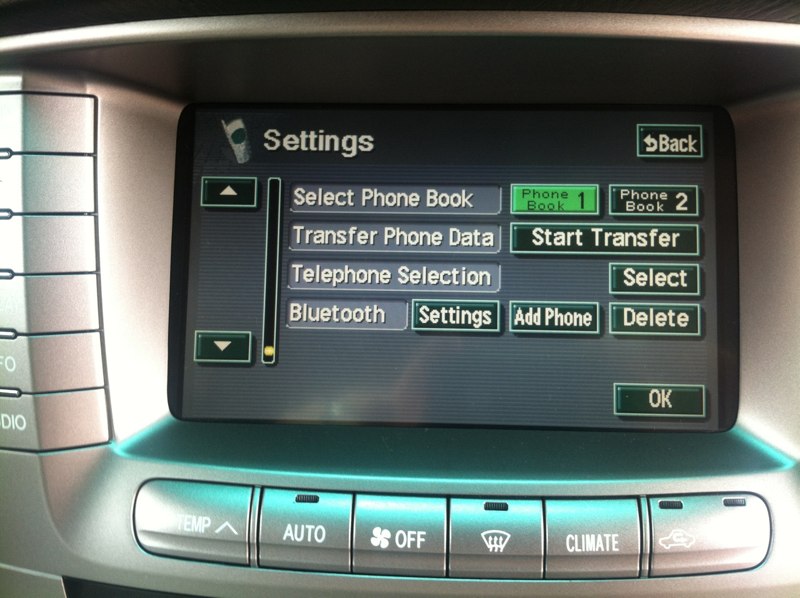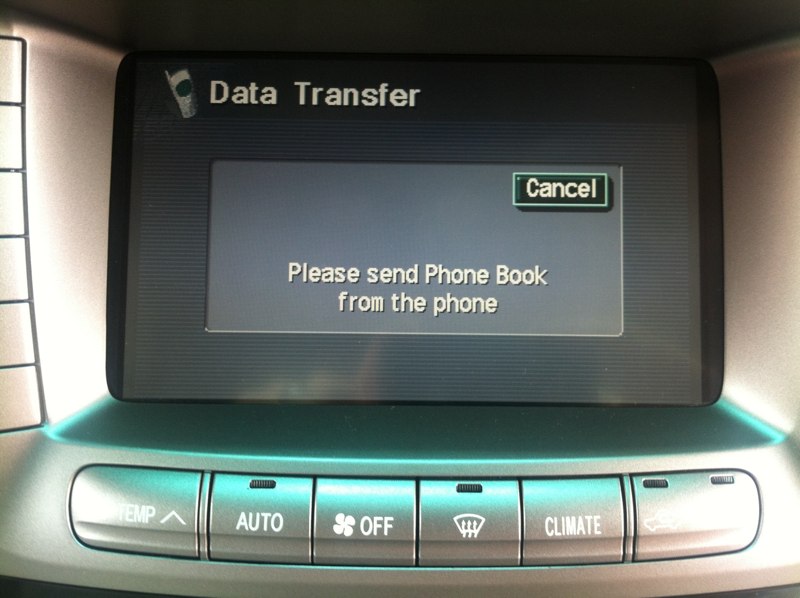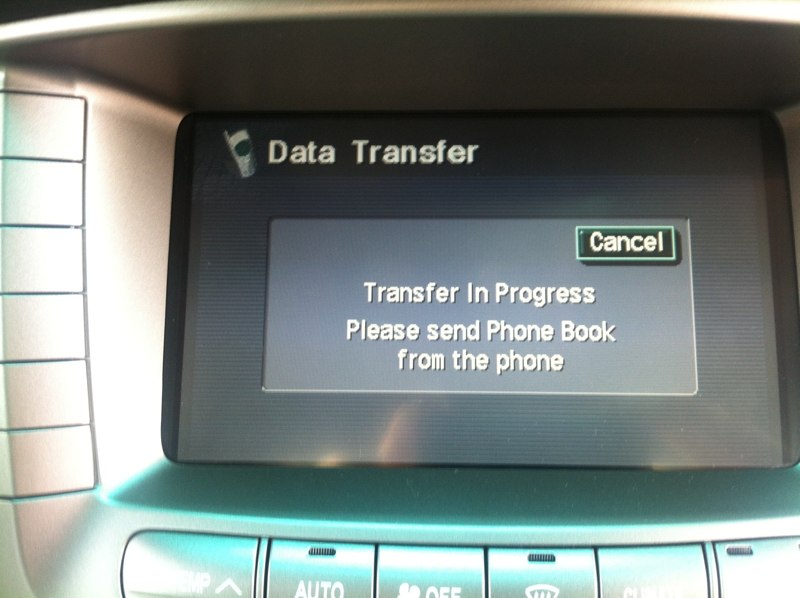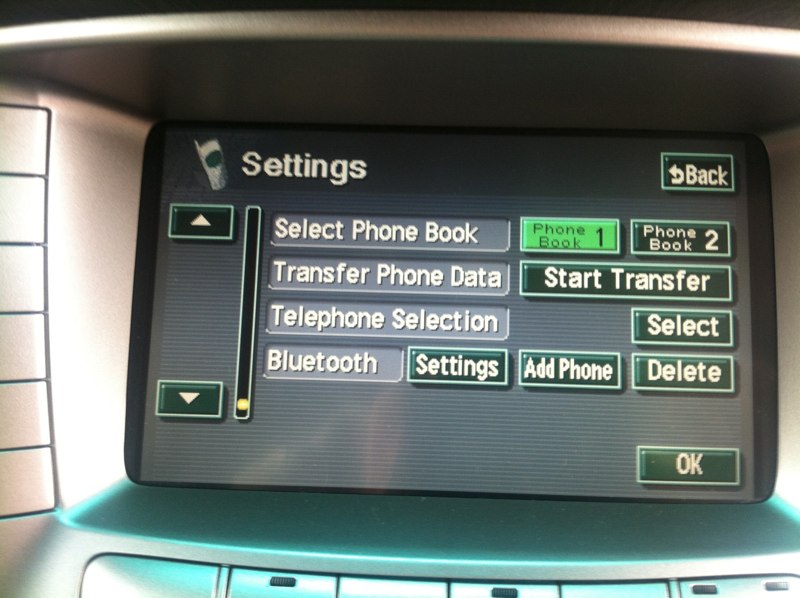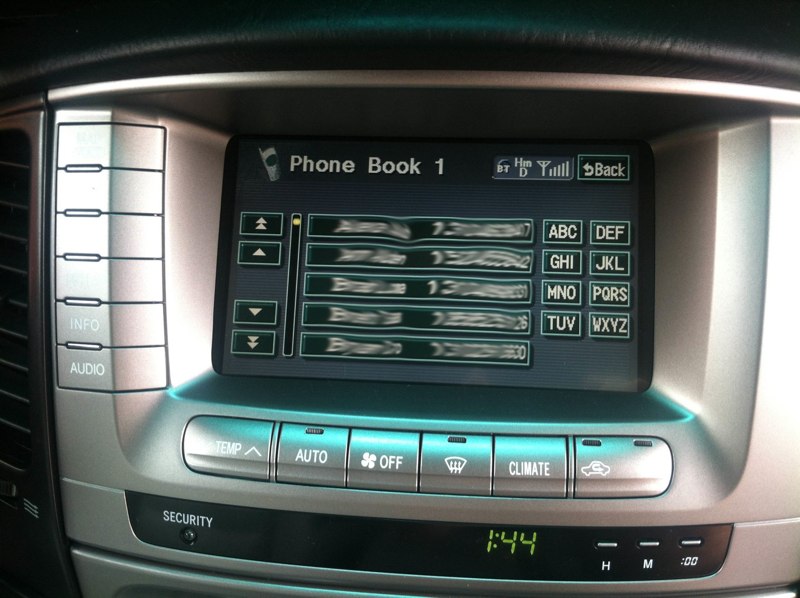


After reading a few posts on the issues getting the address book from an iPhone into the factory NAV unit that supports Bluetooth (2004+) I decided to take the plunge. In reading the few posts on the subject, members here noted a few things w/o much detail:
1. An iPhone will not send it's contacts to the NAV unit via Bluetooth.
2. Someone used Bluetooth File Exchange on a Mac to get it done.
3. Only one number will show up for each contact.
This is not meant to open a debate on iPhone vs. Blackberry vs. Droid or any other cell platform. It's also not meant to open a debate on Mac OS vs. Linux vs. Windows. It's simply my solution to getting my phone's (iPhone) contacts into the factory NAV using the operating system that I have (Mac OS).
Here are the steps in a simple list format if you are tech savvy and do not want to read through the entire write-up...
1. Create a group of contacts in Address Book (or use an an existing one).
2. Edit the information in Address Book so it shows up correctly on the NAV (see below for details).
3. Export to vCard format and save the file on your desktop.
4. Pair your computer to your truck using Bluetooth Setup Assistant in Mac OS.
5. Transfer your vCard file to your truck using Bluetooth File Exchange in Mac OS.
6. Confirm the phone numbers took in your NAV phonebook.
STEP BY STEP DETAILED INSTRUCTIONS:
I have my contacts stored in Address Book and synced on all devices so I chose to use that to export them to vCards and transfer to the NAV unit.
First I opened Address Book and created a New Group which I named "Phonebook".
http://www.dominicsmith.com/Bluetooth_Syncing_files/Media/Create Group/Create Group.jpg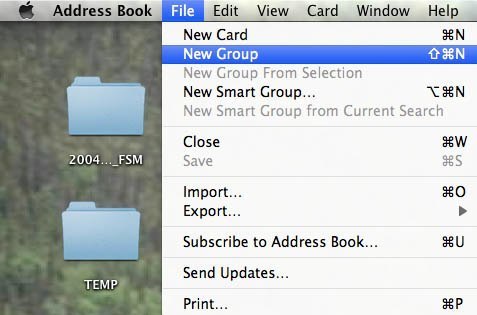
http://www.dominicsmith.com/Bluetooth_Syncing_files/Media/Phonebook group/Phonebook group.jpg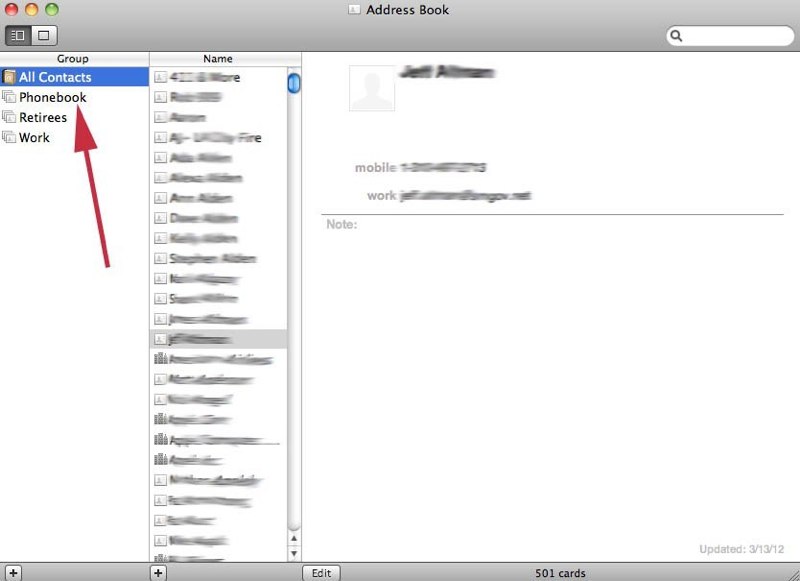
Then I dragged and dropped each member (from All Contacts) that I wanted in the phone book on the cruiser into the "Phonebook" group. I have way more contacts than I would want in my truck so I chose a select few. Once here I edited the details of each member so that they would display correctly once transferred to the car. With trial and error I determined a few things:
EDIT: I COULD NOT GET THE CORRECT #'S TO SHOW UP AS DESCRIBED BELOW. I ENDED UP REMOVING ANY EXTRA #'S FROM THE CONTACTS I WANTED TRANSFERRED AND THEN EXPORTING THE vCARD FILE. THEN I ADDED THE NUMBERS I HAD REMOVED BACK INTO MY COMPUTERS ADDRESS BOOK. I ONLY HAD ABOUT 10 CONTACTS WITH MULTIPLE NUMBERS BUT IF YOU HAVE A LOT THIS MAY BE A SERIOUS TASK. ***(WHEN #'S WERE REMOVED FROM MY "PHONEBOOK" GROUP THEY WERE ALSO REMOVED FROM MY "ALL CONTACTS" GROUP. BE SURE TO WRITE DOWN THE ONES YOU REMOVE OR RISK LOSING THEM).
1. [STRIKE]For a contact with multiple numbers only one will show up. It doesn't matter which order you list them in Address Book (mobile before home, etc.) they will default to alphabetical order. In the case of contacts with multiple numbers that I wanted the mobile # to show up in the cruiser I changed the name of the contact from "mobile" to "cell" using the custom tag. This allowed the cell to show in the NAV phone book instead of a home #. In this example below, the default number would be "home" as work and mobile come after it in the alphabet...[/STRIKE]
http://www.dominicsmith.com/Bluetoo...alphabetical numbers/alphabetical numbers.jpg
2. Numbers I had entered in the standard format (xxx) xxx-xxxx did not transfer correctly. I had to use the xxx-xxx-xxxx format for it to transfer and display correctly on the screen. So I went through and made sure the formatting was correct for the contacts I wanted to transfer.
The dashes seen here (IIIIIIIIIIIIIIIII) are how the poorly transferred numbers look (everything else I blurred) if they are not entered correctly:
http://www.dominicsmith.com/Bluetooth_Syncing_files/Media/IMG_1767/IMG_1767.jpg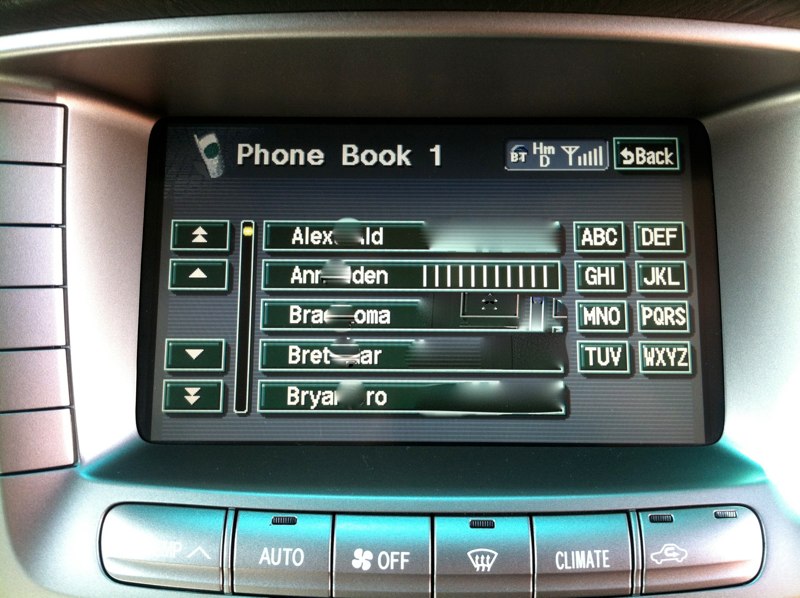
Once I had all the proper contacts in my new "Phonebook" group in Address Book I needed to export them as a vCard file. To do this click on the "Phonebook" group in Address Book then go to File>Export>Export Group vCard. Name the file (or use the default) and place it on your Desktop or any other place where you can find it later.
Now I was one step closer to transferring the phone book but I still had to get them to see each other, so I took the laptop to the truck. Mac OS has a built-in Bluetooth File Exchange program that can be found in the upper right corner in mac OS (or also in Applications>Utilities) that I used.
First you have to pair your computer to the NAV system. Open BT Setup Assistant (or use the icon in the top right corner if you have it running) and select "Open Bluetooth Preferences" or "Set Up Bluetooth Device" as either will work.
http://www.dominicsmith.com/Bluetooth_Syncing_files/Media/Setup BT/Setup BT.jpg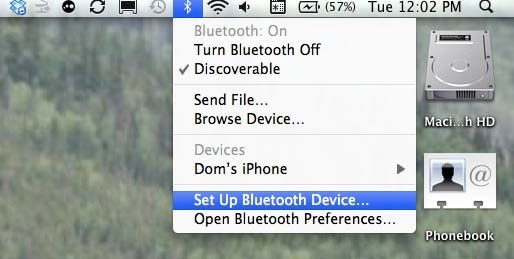
This window appears if you select "Open Bluetooth Preferences" otherwise if you selected "Setup Bluetooth Device" it will start looking automatically: (Note: the computer sees an iPhone but not the car)...
http://www.dominicsmith.com/Bluetooth_Syncing_files/Media/BT/BT.jpg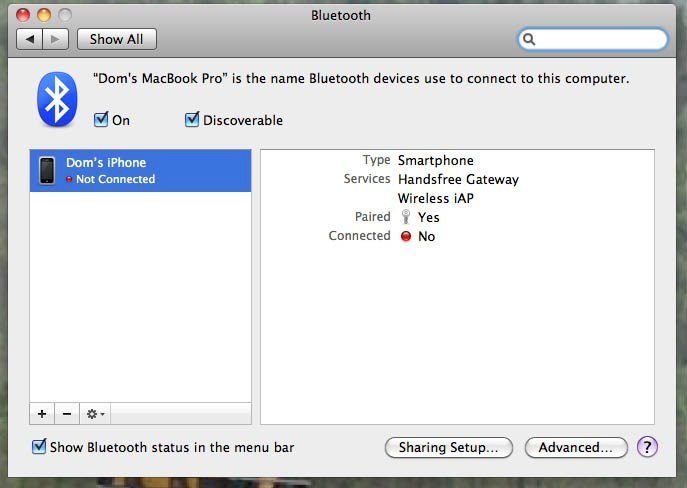
Turn your ignition switch to ACC and wait for the NAV to load.
Now on the NAV unit press the INFO button (left side hard key) to get to this screen:
http://www.dominicsmith.com/Bluetooth_Syncing_files/Media/IMG_1765/IMG_1765.jpg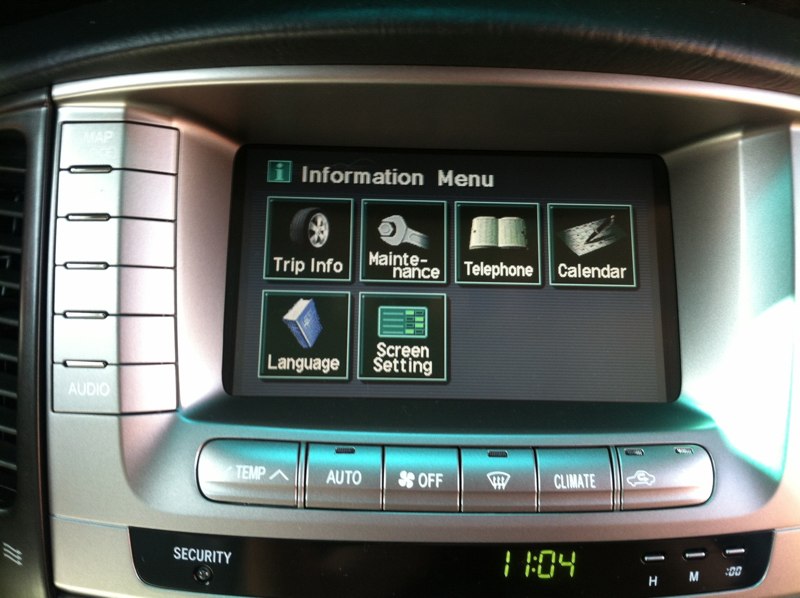
Then press "Telephone" on the touch screen to get here:
http://www.dominicsmith.com/Bluetooth_Syncing_files/Media/IMG_1766/IMG_1766.jpg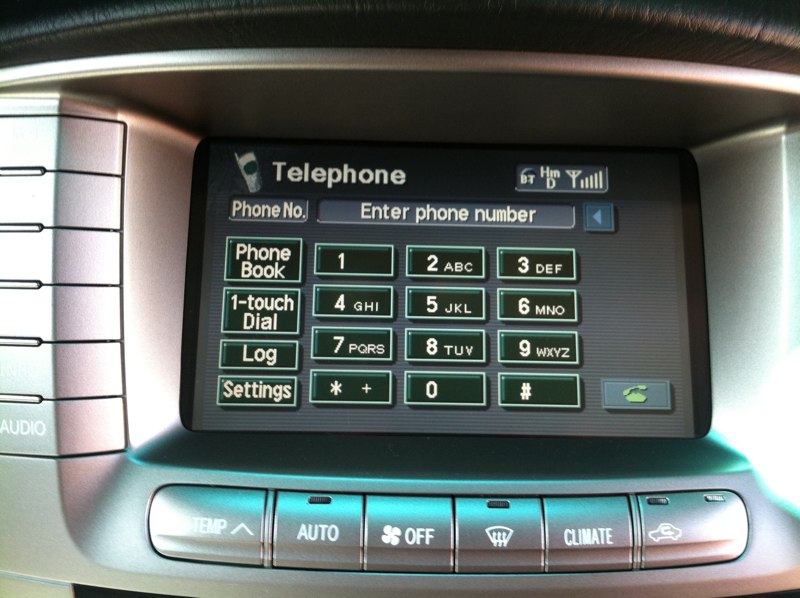
Then press Settings to get here:
http://www.dominicsmith.com/Bluetooth_Syncing_files/Media/IMG_1768/IMG_1768.jpg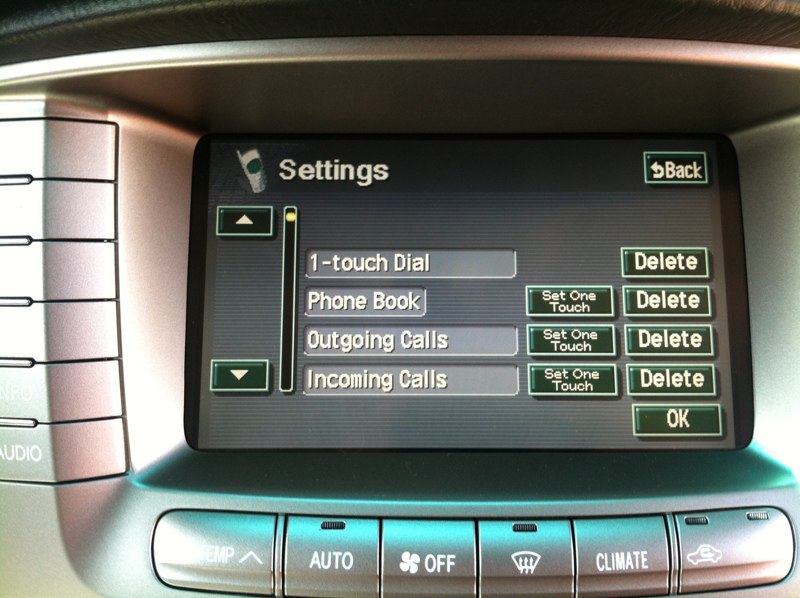
Press the arrow down key on the touchscreen to get to the second page of phone book settings which will display this:
http://www.dominicsmith.com/Bluetooth_Syncing_files/Media/IMG_1772/IMG_1772.jpg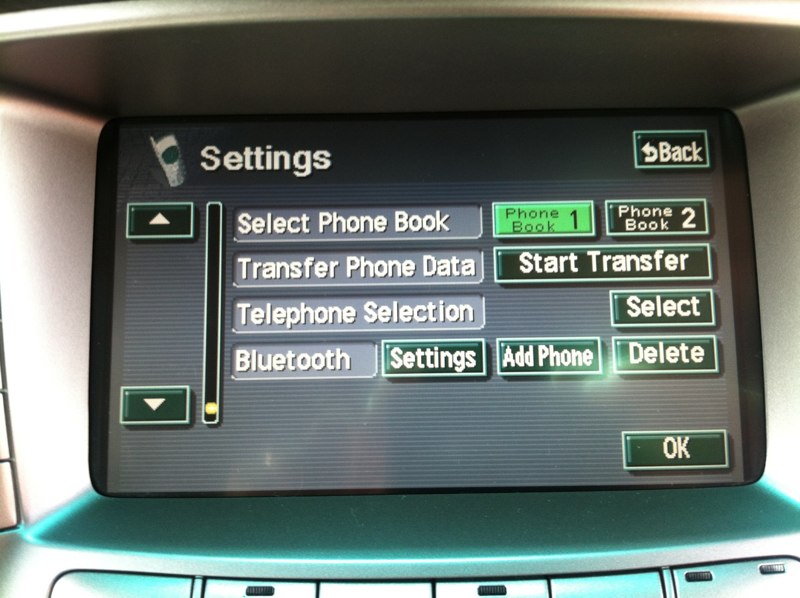
Next to Bluetooth click "Add Phone" which will launch the discovery mode...
http://www.dominicsmith.com/Bluetooth_Syncing_files/Media/IMG_1773/IMG_1773.jpg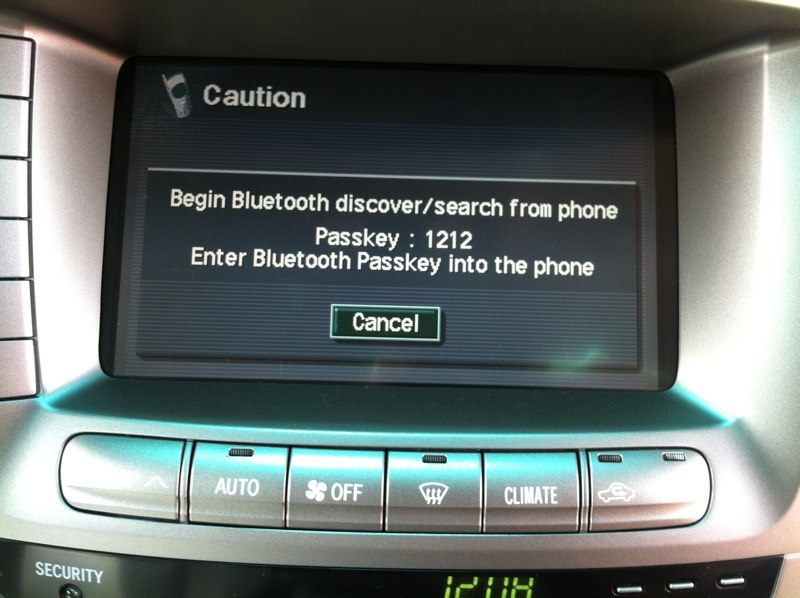
Once in discovery mode on the NAV select the add "+" button in the Bluetooth window on your COMPUTER. It will start searching for BT devices:
http://www.dominicsmith.com/Bluetooth_Syncing_files/Media/Bluetooth Search/Bluetooth Search.jpg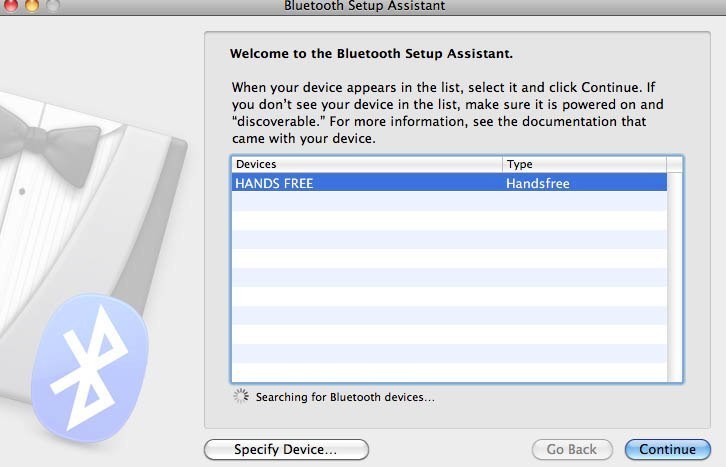
Your truck should show up as HANDS FREE and will try to connect once you press "continue". The first time I paired it asked me for a passcode on the computer (1212) and paired up fine. When I deleted HANDS FREE and re-paired to document for this thread it gave me this error:
http://www.dominicsmith.com/Bluetooth_Syncing_files/Media/Attempting Pair/Attempting Pair.jpg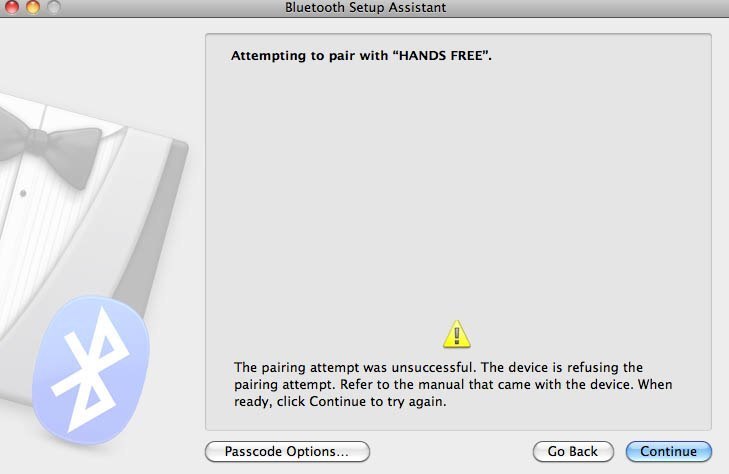
So I clicked on the Passcode Options button in the lower left hand window and was able to select to use a specific passcode (1212) here:
http://www.dominicsmith.com/Bluetooth_Syncing_files/Media/Bluetooth passcode/Bluetooth passcode.jpg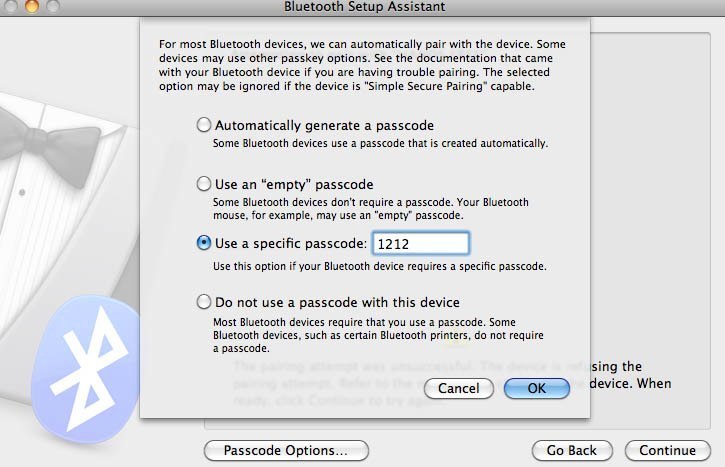
Once clicking OK it paired up fine...
http://www.dominicsmith.com/Bluetoo...a/Bluetooth Paired 01/Bluetooth Paired 01.jpg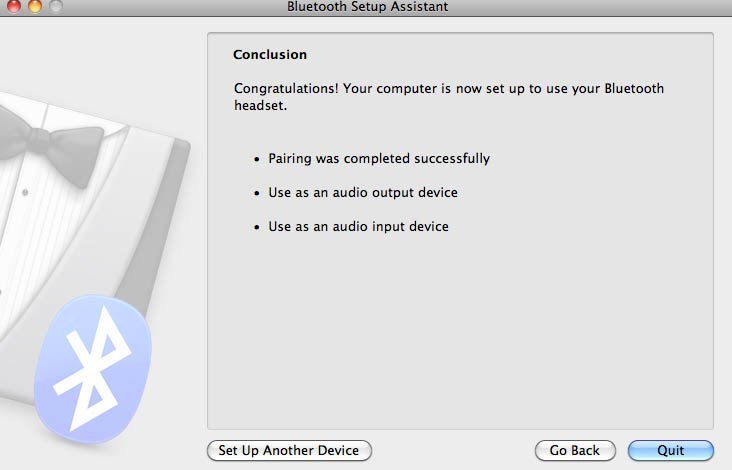
Now that your computer is paired up with the truck, the next step will be sending the phonebook via Bluetooth...
1. An iPhone will not send it's contacts to the NAV unit via Bluetooth.
2. Someone used Bluetooth File Exchange on a Mac to get it done.
3. Only one number will show up for each contact.
This is not meant to open a debate on iPhone vs. Blackberry vs. Droid or any other cell platform. It's also not meant to open a debate on Mac OS vs. Linux vs. Windows. It's simply my solution to getting my phone's (iPhone) contacts into the factory NAV using the operating system that I have (Mac OS).
Here are the steps in a simple list format if you are tech savvy and do not want to read through the entire write-up...
1. Create a group of contacts in Address Book (or use an an existing one).
2. Edit the information in Address Book so it shows up correctly on the NAV (see below for details).
3. Export to vCard format and save the file on your desktop.
4. Pair your computer to your truck using Bluetooth Setup Assistant in Mac OS.
5. Transfer your vCard file to your truck using Bluetooth File Exchange in Mac OS.
6. Confirm the phone numbers took in your NAV phonebook.
STEP BY STEP DETAILED INSTRUCTIONS:
I have my contacts stored in Address Book and synced on all devices so I chose to use that to export them to vCards and transfer to the NAV unit.
First I opened Address Book and created a New Group which I named "Phonebook".
http://www.dominicsmith.com/Bluetooth_Syncing_files/Media/Create Group/Create Group.jpg

http://www.dominicsmith.com/Bluetooth_Syncing_files/Media/Phonebook group/Phonebook group.jpg

Then I dragged and dropped each member (from All Contacts) that I wanted in the phone book on the cruiser into the "Phonebook" group. I have way more contacts than I would want in my truck so I chose a select few. Once here I edited the details of each member so that they would display correctly once transferred to the car. With trial and error I determined a few things:
EDIT: I COULD NOT GET THE CORRECT #'S TO SHOW UP AS DESCRIBED BELOW. I ENDED UP REMOVING ANY EXTRA #'S FROM THE CONTACTS I WANTED TRANSFERRED AND THEN EXPORTING THE vCARD FILE. THEN I ADDED THE NUMBERS I HAD REMOVED BACK INTO MY COMPUTERS ADDRESS BOOK. I ONLY HAD ABOUT 10 CONTACTS WITH MULTIPLE NUMBERS BUT IF YOU HAVE A LOT THIS MAY BE A SERIOUS TASK. ***(WHEN #'S WERE REMOVED FROM MY "PHONEBOOK" GROUP THEY WERE ALSO REMOVED FROM MY "ALL CONTACTS" GROUP. BE SURE TO WRITE DOWN THE ONES YOU REMOVE OR RISK LOSING THEM).
1. [STRIKE]For a contact with multiple numbers only one will show up. It doesn't matter which order you list them in Address Book (mobile before home, etc.) they will default to alphabetical order. In the case of contacts with multiple numbers that I wanted the mobile # to show up in the cruiser I changed the name of the contact from "mobile" to "cell" using the custom tag. This allowed the cell to show in the NAV phone book instead of a home #. In this example below, the default number would be "home" as work and mobile come after it in the alphabet...[/STRIKE]
http://www.dominicsmith.com/Bluetoo...alphabetical numbers/alphabetical numbers.jpg

2. Numbers I had entered in the standard format (xxx) xxx-xxxx did not transfer correctly. I had to use the xxx-xxx-xxxx format for it to transfer and display correctly on the screen. So I went through and made sure the formatting was correct for the contacts I wanted to transfer.
The dashes seen here (IIIIIIIIIIIIIIIII) are how the poorly transferred numbers look (everything else I blurred) if they are not entered correctly:
http://www.dominicsmith.com/Bluetooth_Syncing_files/Media/IMG_1767/IMG_1767.jpg

Once I had all the proper contacts in my new "Phonebook" group in Address Book I needed to export them as a vCard file. To do this click on the "Phonebook" group in Address Book then go to File>Export>Export Group vCard. Name the file (or use the default) and place it on your Desktop or any other place where you can find it later.
Now I was one step closer to transferring the phone book but I still had to get them to see each other, so I took the laptop to the truck. Mac OS has a built-in Bluetooth File Exchange program that can be found in the upper right corner in mac OS (or also in Applications>Utilities) that I used.
First you have to pair your computer to the NAV system. Open BT Setup Assistant (or use the icon in the top right corner if you have it running) and select "Open Bluetooth Preferences" or "Set Up Bluetooth Device" as either will work.
http://www.dominicsmith.com/Bluetooth_Syncing_files/Media/Setup BT/Setup BT.jpg

This window appears if you select "Open Bluetooth Preferences" otherwise if you selected "Setup Bluetooth Device" it will start looking automatically: (Note: the computer sees an iPhone but not the car)...
http://www.dominicsmith.com/Bluetooth_Syncing_files/Media/BT/BT.jpg

Turn your ignition switch to ACC and wait for the NAV to load.
Now on the NAV unit press the INFO button (left side hard key) to get to this screen:
http://www.dominicsmith.com/Bluetooth_Syncing_files/Media/IMG_1765/IMG_1765.jpg

Then press "Telephone" on the touch screen to get here:
http://www.dominicsmith.com/Bluetooth_Syncing_files/Media/IMG_1766/IMG_1766.jpg

Then press Settings to get here:
http://www.dominicsmith.com/Bluetooth_Syncing_files/Media/IMG_1768/IMG_1768.jpg

Press the arrow down key on the touchscreen to get to the second page of phone book settings which will display this:
http://www.dominicsmith.com/Bluetooth_Syncing_files/Media/IMG_1772/IMG_1772.jpg

Next to Bluetooth click "Add Phone" which will launch the discovery mode...
http://www.dominicsmith.com/Bluetooth_Syncing_files/Media/IMG_1773/IMG_1773.jpg

Once in discovery mode on the NAV select the add "+" button in the Bluetooth window on your COMPUTER. It will start searching for BT devices:
http://www.dominicsmith.com/Bluetooth_Syncing_files/Media/Bluetooth Search/Bluetooth Search.jpg

Your truck should show up as HANDS FREE and will try to connect once you press "continue". The first time I paired it asked me for a passcode on the computer (1212) and paired up fine. When I deleted HANDS FREE and re-paired to document for this thread it gave me this error:
http://www.dominicsmith.com/Bluetooth_Syncing_files/Media/Attempting Pair/Attempting Pair.jpg

So I clicked on the Passcode Options button in the lower left hand window and was able to select to use a specific passcode (1212) here:
http://www.dominicsmith.com/Bluetooth_Syncing_files/Media/Bluetooth passcode/Bluetooth passcode.jpg

Once clicking OK it paired up fine...
http://www.dominicsmith.com/Bluetoo...a/Bluetooth Paired 01/Bluetooth Paired 01.jpg

Now that your computer is paired up with the truck, the next step will be sending the phonebook via Bluetooth...
Last edited: